Sorry, we found 0 results. Please try another query.
Showing max 10 of results

Introducing diagramHub

Introducing diagramHub: My new tool for managing diagrams

As someone who has worked on countless projects involving diagrams, I’ve often found myself frustrated with the lack of a centralized, secure, and collaborative platform for managing them. That’s why I decided to create diagramHub.
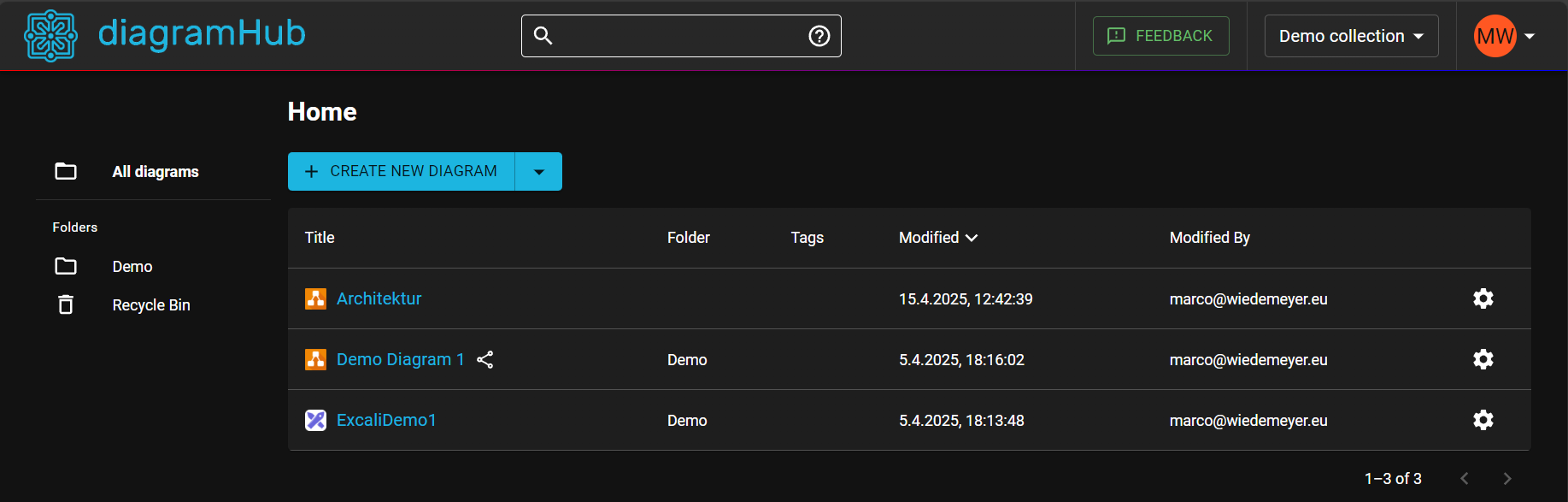
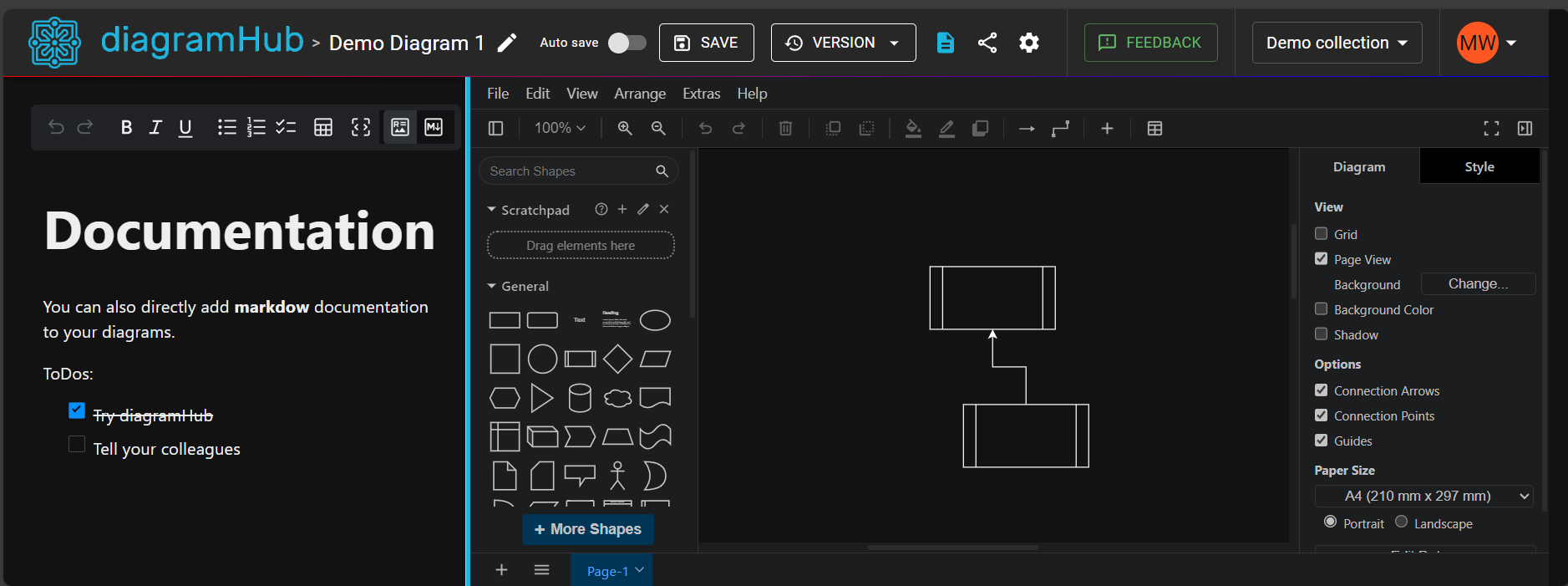
diagramHub Home Screen
diagramHub Diagram Screen

Why I built diagramHub

The idea for diagramHub came from my own experiences, especially after seeing a demo of another tool for creating and sharing diagrams in a proprietary format. The tool was also very expensive.

If you ever searched through emails, SharePoint, and scattered folders to find the right diagram or wanted to work together on a Draw.io diagram with others if it is stored in SharePoint or Azure DevOps, diagramHub is the solution.

What Makes diagramHub Special?

diagramHub is a unique Software-as-a-service tool with the following features:

  1. Centralized Management
    I wanted a single place to store and organize all my diagrams, whether for personal projects or team collaborations. diagramHub allows you to create, edit, and manage diagrams in one place.

  2. Privacy and Security
    diagramHub is hosted in Germany. You have full control over which diagram or collection of diagrams you want to share and with whom.

  3. Collaboration Made Easy
    Collaboration should be simple and intuitive. With diagramHub, you can invite colleagues, clients or even guests to view or edit diagrams in near real-time.

  4. Integration with Popular Tools
    Diagrams from diagramHub can be embedded into tools like GitHub, Azure DevOps Wikis, and Confluence. You never need to export an image and update it manually again.

  5. Easy Access
    diagramHub is using Microsoft 365 for authentication. This means you can just sign in with your work account. The first user from a company/tenant automatically becomes the Company Administrator.
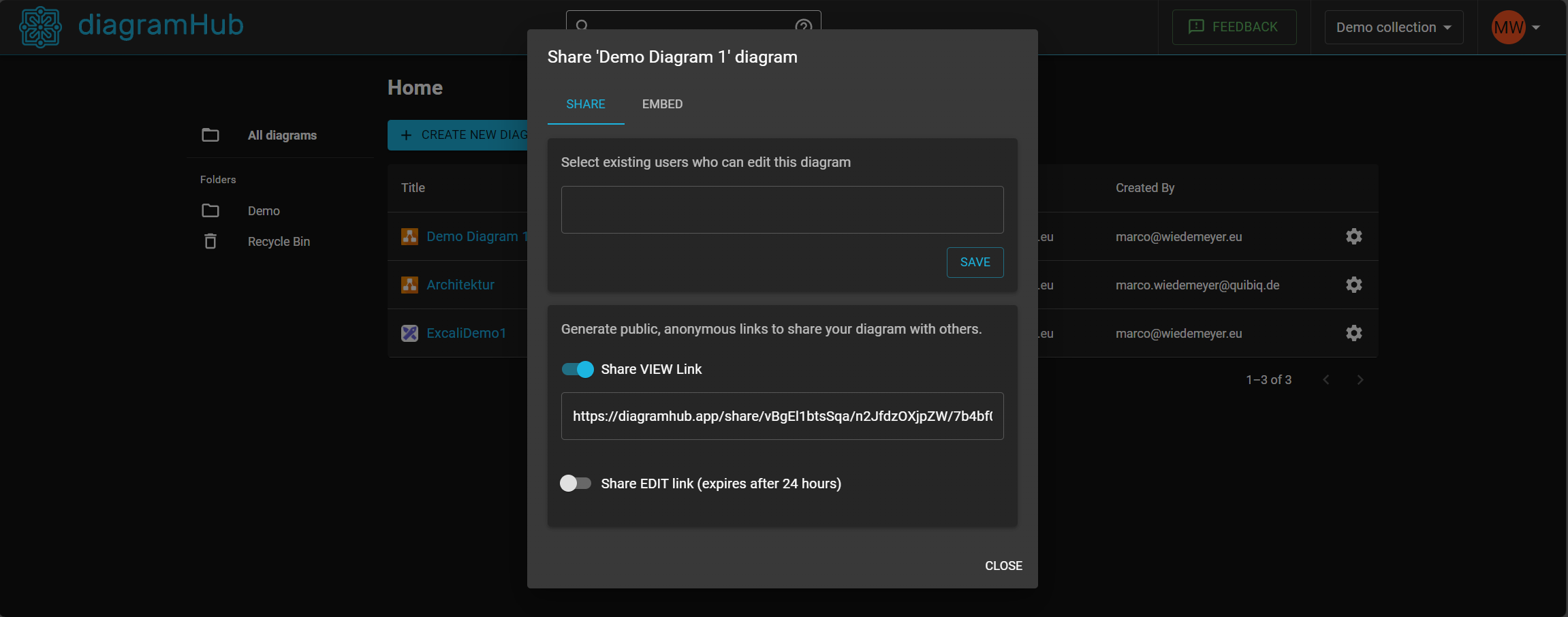
diagramHub Share Screen

How You Can Get Started

Getting started with diagramHub is easy:

  1. Sign In: Use your Microsoft 365 work account to sign in. The first user from a company automatically becomes the Company Administrator.
  2. Exploring: Once signed in, you can see a demo diagram and you can use the guest edit link to try some features.
  3. Start a Trial: Enjoy a 14-day free trial with no credit card required.
  4. Manage Licenses: Purchase Editor licenses (as the company administrator) for advanced features and assign them to your team members.

Final Thoughts

I’m excited to share diagramHub with you and we at my employer QUIBIQ Hamburg already using it.

Ready to give it a try? Visit diagramHub now. If you have any questions or feedback or need a demo account, feel free to reach out to me at support@diagramhub.app
Vaultwarden (Bitwarden) on Azure Container Apps - Part 3

This is the third part of a series of articles about Vaultwarden on Azure Container Apps:

How to backup the data and restore it in case of a disaster

In the first part of this series, I’ve shown you how to deploy Vaultwarden on Azure Container Apps. In this article, I will show you how to backup the data and restore it in case of a disaster.

Vaultwarden stores all data in a SQLite database. As shown in part 1, I’m storing all data in an Azure storage account file share.
The easiest way to backup all the data is to copy the database files and all other files from the file share to another location.

However, the SQLite database files are in use if the container is running. Therefore I’m using the following script to stop the container, copy the files and start the container again. This just takes a few seconds and if you do this in the night, you will not notice any downtime.

I’m using the Azure CLI to stop and start the container. The script runs on one of my computers once a day.

PowerShell using Azure CLI

Replace the TODO_YOUR_STORAGE_ACCOUNT_NAME, TODO_YOUR_ACCOUNT_KEY, TODO_RESOURCE_GROUP_NAME and TODO_CONTAINER_APP_NAME with the values from your storage account.

1
2
3
4
5
6
7
8
9
10
11
12
13
14
15
16
17
18
19
# Enable these two lines if you are using the storage account network rules.
# This will allow access to the storage account from everywhere.
#az storage account update --default-action Allow --name TODO_YOUR_STORAGE_ACCOUNT_NAME
#start-sleep 60

# Get the current active revision
$rev = az containerapp revision list -n TODO_CONTAINER_APP_NAME -g TODO_RESOURCE_GROUP_NAME --query [0].name --output tsv

# Deactivate the current revision
az containerapp revision deactivate -n TODO_CONTAINER_APP_NAME -g TODO_RESOURCE_GROUP_NAME --revision $rev

# Download the files from the storage account file share
az storage file download-batch --account-key TODO_YOUR_ACCOUNT_KEY --account-name TODO_YOUR_STORAGE_ACCOUNT_NAME --destination ./vaultwarden --no-progress --source vaultwarden

# Reactivate the revision
az containerapp revision activate -n TODO_CONTAINER_APP_NAME -g TODO_RESOURCE_GROUP_NAME --revision $rev

# If you are using the storage account network rules, disable access from everywhere again.
#az storage account update --default-action Deny --name TODO_YOUR_STORAGE_ACCOUNT_NAME

Restore

In case of an emergency, you can restore the Vaultwarden instance with the steps from part 1. Before you start the container instance, just copy all the data back to the storage account file share, then start the container and you are done.

If you have any questions, please let me know in the comments or reach out to me on these other channels.

Vaultwarden (Bitwarden) on Azure Container Apps - Part 2

This is the second part of a series of articles about Vaultwarden on Azure Container Apps:

How to use a custom domain with a free Letsencrypt TLS certificate

In the first part of this series, I’ve shown you how to deploy Vaultwarden on Azure Container Apps. In this article, I will show you how to use a custom domain with a free Lets Encrypt TLS certificate.

Prerequisites

  • Azure Container App (see Part 1)
  • An Azure DNS Zone for your custom domain (see here)

Create a custom domain

⚠️ UPDATE 2023/06: Container Apps supports now a free managed certificate. The Container Apps Acmebot is no longer required!

For now, Azure Container Apps support custom domains but no auto managed TLS certificates. So, we will use an Azure Function to connect to Lets Encrypt, get the certificate and store and assign it to the container app.

Luckily there is a great solution on Github here: Container Apps Acmebot

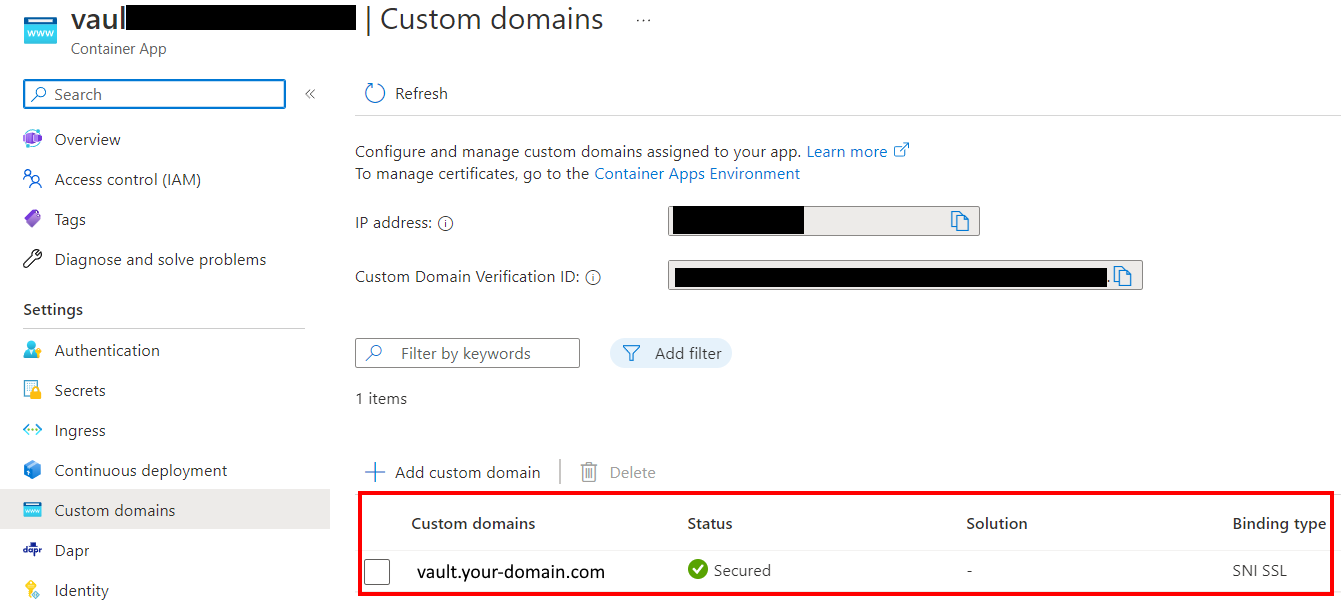
Before you go on, make sure to add a TXT and a CNAME record for your custom domain with the data from the container app. You can find the data in the Azure Portal in the Custom domains section.

It is really easy to use. You can deploy it in the same Azure subscription where you already deployed Vaultwarden.
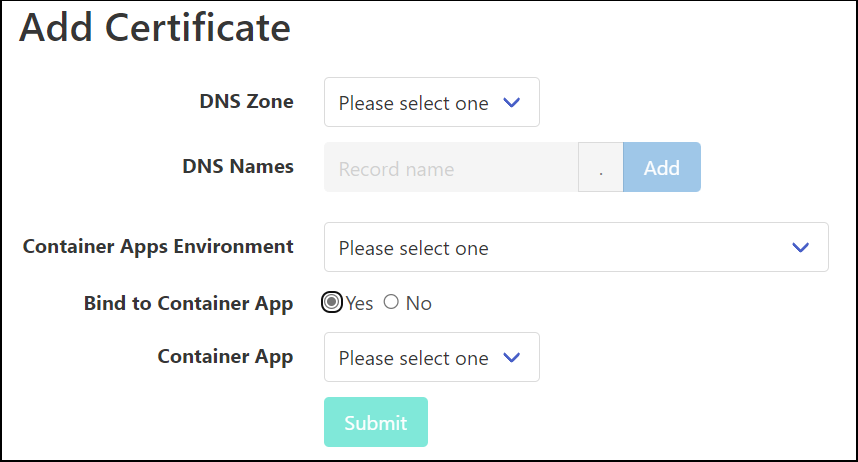
After install (via Deploy to Azure button on the Github repo), you open a simple website and select the domain and the container app to use and that’s it.

/images/2023/containerapp3.png

After a few minutes, you can see the certificate in the Azure Portal within the container app:

/images/2023/containerapp4.png

If you have any questions, please let me know in the comments or reach out to me on these other channels.

Vaultwarden (Bitwarden) on Azure Container Apps - Part 1

This is the first of a series of articles about Vaultwarden on Azure Container Apps:

Introduction

If you want to get rid of the hassle of managing your passwords in Excel or you want to dump LastPass (after the latest breach), 1Password or other cloud-based solutions you should take a look at Vaultwarden.

It is a Bitwarden clone. Bitwarden is a cloud password manager, but it is also open source and can be self-hosted. You can run it on your own server or in the cloud. However it is under your control and you can decide what to do with your data.

Vaultwarden is an unofficial Bitwarden server implementation written in Rust. It can be run for example on a Raspberry Pi or in a Docker container and you can make it public or run it in your own private/home network.

In this article, I will show you how to deploy Vaultwarden on Azure Container Apps for less than 1 EUR per month (if you do not want the extra network security. Otherwise Azure automatically creates a load balancer for ~18$/month).
UPDATE: I was wrong regarding the pricing. I’ve set the scaling to minReplicas=1 which means there is always one running instance. This is then ~10EUR/month. It is only cheap as 1 EUR if you scale to 0 instances if there are no requests. I’ve updated the bicep/arm template to use 0 as the minReplicas setting.

Important note about the storage

Vaultwarden stores all data in a SQLite database within the file system (encrypyted of course). I’m using a file share in a storage account which will be mounted as a volume in the container. This way the data will be persisted even if the container is restarted or the container app is deleted. If you run it without a mounted volume, all data will be lost when the container is restarted.

In the Vaultwarden repository are some discussions about the SQlite database in an Azure storage account. I’ve tested it and it works fine with WAL enabled. I had to explicitly set the ENABLE_DB_WAL environment variable to true to enable it. If you don’t do this, the database will be locked and you will get an error message when you try to access the web interface.

Prerequisites

First of all you need an Azure account. If you don’t have one, you can create a free account here. You need to enter a credit card to verify your identity, but the solution will cost you less than 1 EUR per month (if you are using it for personal use with your family members).

Create the Azure resources

Update: You can now decide whether you want virtual network integration or not. If you choose virtual network integration Azure automatically creates a loadbalancer for you which you have to pay for.

You can do this within the Azure portal directly, however there are some things that are not possible right now in the UI (like mounting a file share as a volume in the container app).
Therefore I’ve created a Bicep template that will create the following resources:

  • Virtual Network (optional)
  • Storage Account including a file share (where Vaultwarden will store the data)
  • Log Analytics Workspace (for monitoring/logging)
  • Container Apps Environment (smallest version is more than enough) (for hosting the container app)
  • Container App

You can find the Bicep template and instructions how to deploy it here or you can just click this button:

The container app references the vaultwarden docker hub image and will run it automatically. You can customize the installation by setting some environment variables. All configuration options can be found here in the Vaultwarden wiki

The storage account only allows access from the virtual network where the container app resides if you choose to enable virtual network support.

Issue with Vaultwarden on Azure File Share

There is an issue with the SQLite database on an Azure File Share. The database cannot be created automatically. Therefore you need to put an empty Vaultwarden database upfront into the file share.

⚠️ Important: Before you can proceed make sure to make the storage account accessible. Go to the storage account Networking tab and check Enabled from all networks. After you copied the files as decribed below, make sure to switch back to Enabled from selected virtual networks and IP addresses.

Here is an empty database that you can use. Just download the zip file, unzip all 3 files and upload them to the file share:

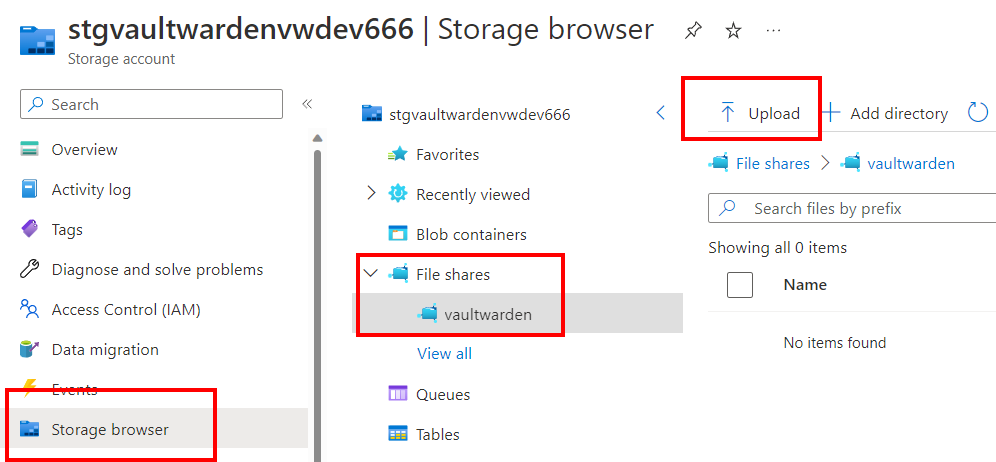
  • Go to the Azure portal and navigate to the storage account
  • Click on the file share vaultwarden
  • Click on Upload and upload the 3 files

/images/2023/containerapp2.png

First run

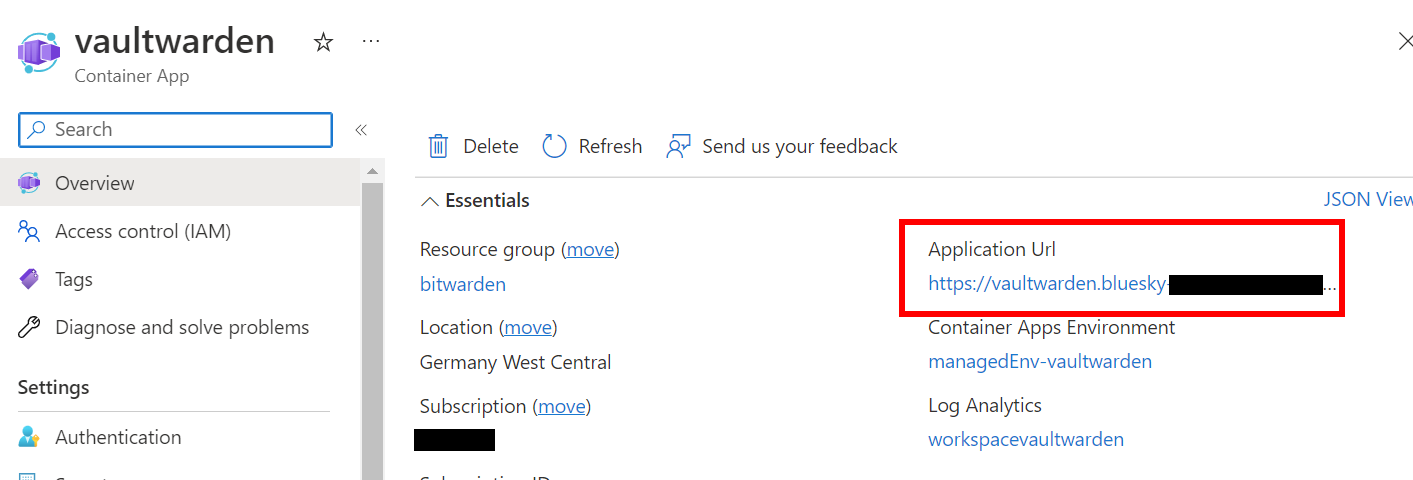
After the deployment is finished and you have created the empty database, you can access the web interface of Vaultwarden by clicking on the URL in the container app overview.

/images/2023/containerapp1.png

You need to register a new user and then you can start adding your passwords.

⚠️ Warning

I recommend to use a strong master password and enable MFA for all users if you are running Vaultwarden on the public internet.

If you have any questions, please let me know in the comments or reach out to me on these other channels.

Insomnia as a Postman alternative

Lately I had some issues with Postman like a lot of other people.

Long story short: If you have a personal workspace, create a team and then decide you do not want a team anymore and delete it, all your personal workspaces and collections are automatically deleted.

I wanted to be smart and took my second device offline and opened Postman. However, Postman says: You are offline, so you cannot access your synced workspaces.
That means: Everything is gone and cannot be recovered.

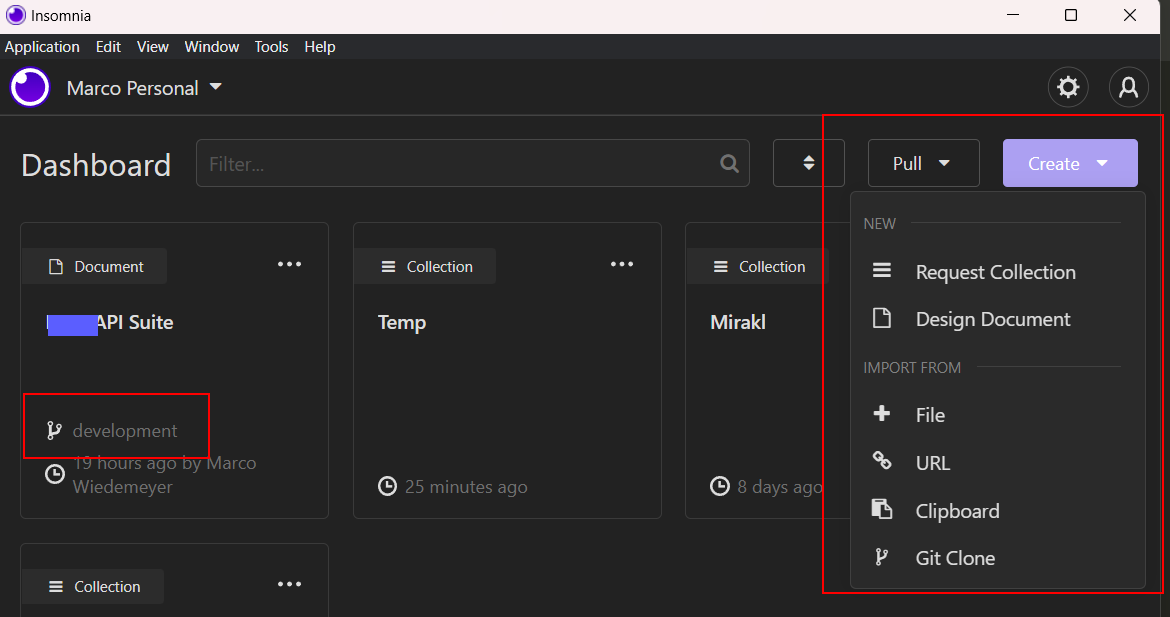
That was the trigger to move to another tool. I tried Insomnia and it is a great alternative to Postman. It is open source and has a lot of features.

/images/2022/insomnia.png

You do not even need a paid account, but you can easily sync your workspaces with git to any repository you want. It also has a lot of plugins you can use to extend the functionality.

Workflow

To start a new collection, you should create a new Design Document not a Request Collection. The advantage of a Design Document is that you can work on an OpenAPI specification or create requests from scratch. Also git sync is only available for Design Documents and you get these 3 tabs:

/images/2022/insomnia2.png

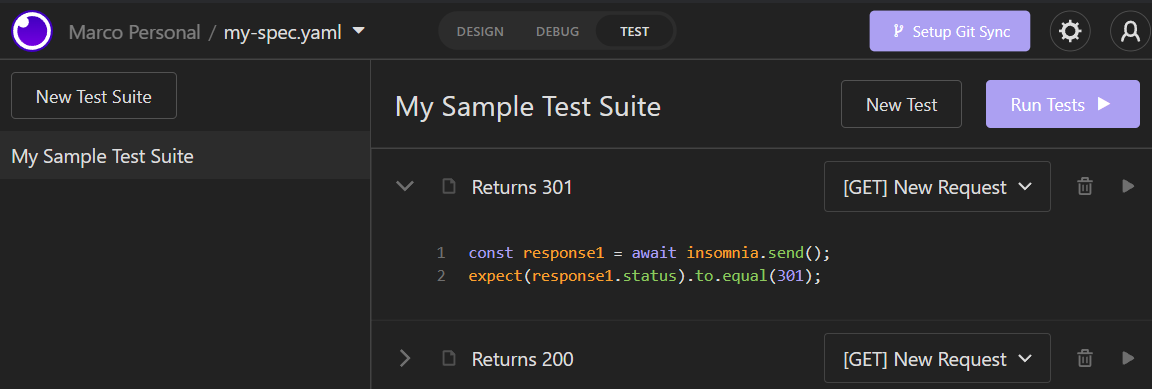
The Design tab is where you can create your requests as an OpenAPI specification or import from a yml or json file. The Debug tab is where you can test your requests or create new requests. The Test tab is where you can create test suites with tests for your requests. As you can see in the following image the tests are written in javascript, so you have a lot of options.

/images/2022/insomnia3.png

Conclusion

I am really happy with Insomnia and I will use it for all my API testing. It is a great alternative to Postman and I can recommend it especially for the plugins and the free git sync.